How do we accept payments for event registrations if we do not have our own merchant account?

If you do not have a merchant account, you have the option to choose Dryfta payment gateway which accepts ticket payments on your behalf and transfer the funds through wire transfer.

To enter your bank information where you wish to receive the payouts, go to Tickets & Fees > Payment Setup and click on Dryfta logo under Credit card payments. Enter your bank information and click save.
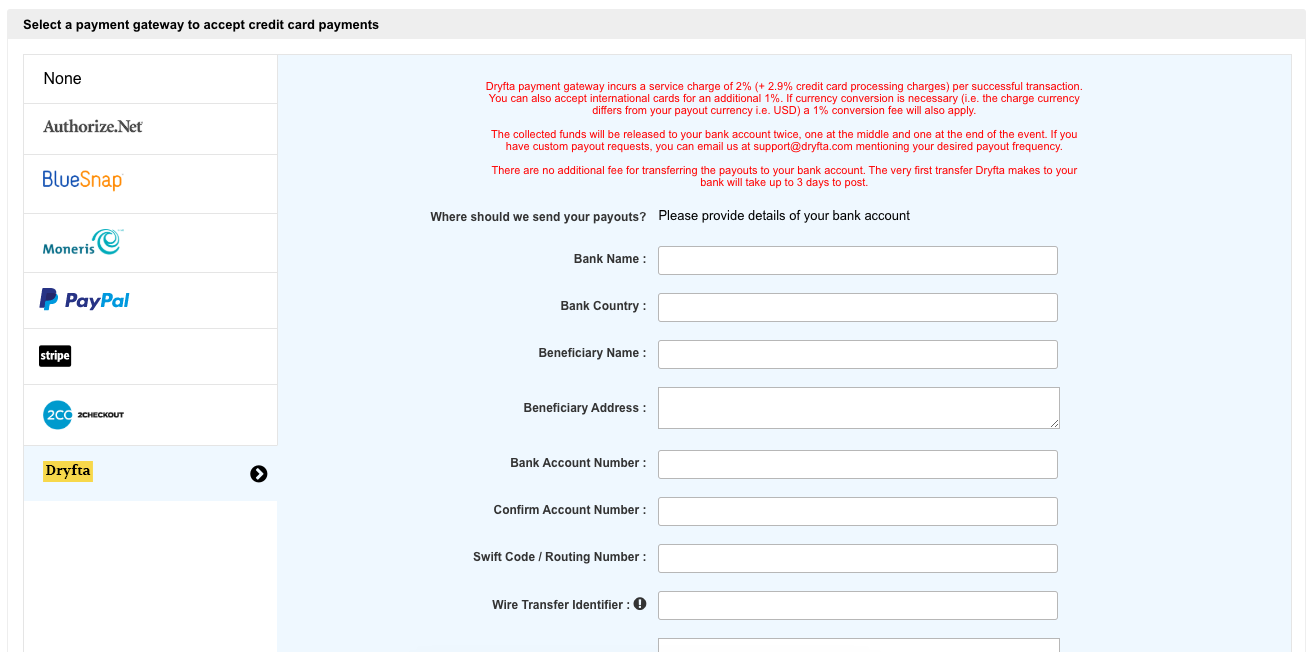
payment settings


Payout frequency – Payout transfer is currently scheduled to be released twice during the event, one in the middle and one at the end of the event. You’ll be notified if a schedule change comes into effect.

Alternatively, you can choose to receive the payout at the end of every month. To set your payout frequency to monthly payouts, please send an email to support@dryfta.com

Transaction fee – There is a fee of 4.9% per transaction (service fee + credit card processing fee) if you use our in-built merchant account.

The system sends an email to the event’s main admin on every transaction (successful/failed/cancelled) that is made on your event website and is also recorded under Orders section in your event dashboard.

The transaction details include:

  • Customer name
  • unique order ID
  • Date of transaction
  • Payment method
  • Billing address
  • Transaction amount
  • Ticket which has been purchased
  • name of the ticket owner for whom this ticket was purchased
  • Total tax applied
  • Payment status (Confirmed/Pending)


You will have this information available in the email sent to you as well as under the Orders tab in event dashboard.


How does the order status change?

Order status change from pending to confirmed if the payment is completed.

If
the buyer chooses offline payment or hasnt completed online payment,
the order status remains pending until the online payment is completed
(buyer can pay for his pending order by going to his dashboard and
clicking on make payment) or admin has changed the status from pending
to confirmed (if the buyer has already paid for the ticket using an
offline channel).

How to create order record for recurring payments automatically?

To create order for every recurring payment do the following :

Go to webhooks in account settings of your stripe account.

Click on ‘add webhook endpoint’ and add the link provided below.

Select ‘Select Event’ option and check ‘charge.succeeded’ and ‘charge.failed’ and click on Create Endpoint.

Stripe Webhook Endpoint URL : http://yourevent.dryfta.com/recurringpayment.php – Replace ‘yourevent’ with the name of your event.

How to enable public profile for reviewers?

To enable public profile for anyone, you need to first assign the attendee role to the contact.

Go to Contacts. Click on Reviewers tab. See screenshot.

Click on a Reviewer’s name, assign the attendee role and click on Save. 

The public profile option is now being displayed. Enable it.

If you want to enable public profile for multiple reviewers at once, do the following:

Go to Reviewers tab.

Select all reviewers in the list.

Click on Bulk Edit button (hover on Actions). See screenshot.

Select Assign Roles from the dropdown and enable Attendee role.

Click on Save. This would assign the attendee role to all of the selected reviewers.

Now, select the reviewers again, click on the Bulk Edit button, select Public profile settings from the dropdown and enable public profile for selected reviewers. See screenshot.